BLOG

Google Pay in Pakistan: How to Integrate It with Your Store

Accept Google Pay in Pakistan with XPay by PostEx. Enable one-tap payments, reduce cart abandonment, and boost conversions.

Author
XPay

December 19, 2025

Online payments in Pakistan are growing rapidly as more customers shop on mobile devices and expect fast, secure checkout options. Google Pay provides a reliable payment method that meets these needs. Through XPay by PostEx, merchants in Pakistan can now accept Google Pay on their stores using a straightforward integration.

This guide explains what Google Pay is, its benefits for businesses and customers, and how to integrate it correctly via XPay.

What Is Google Pay?

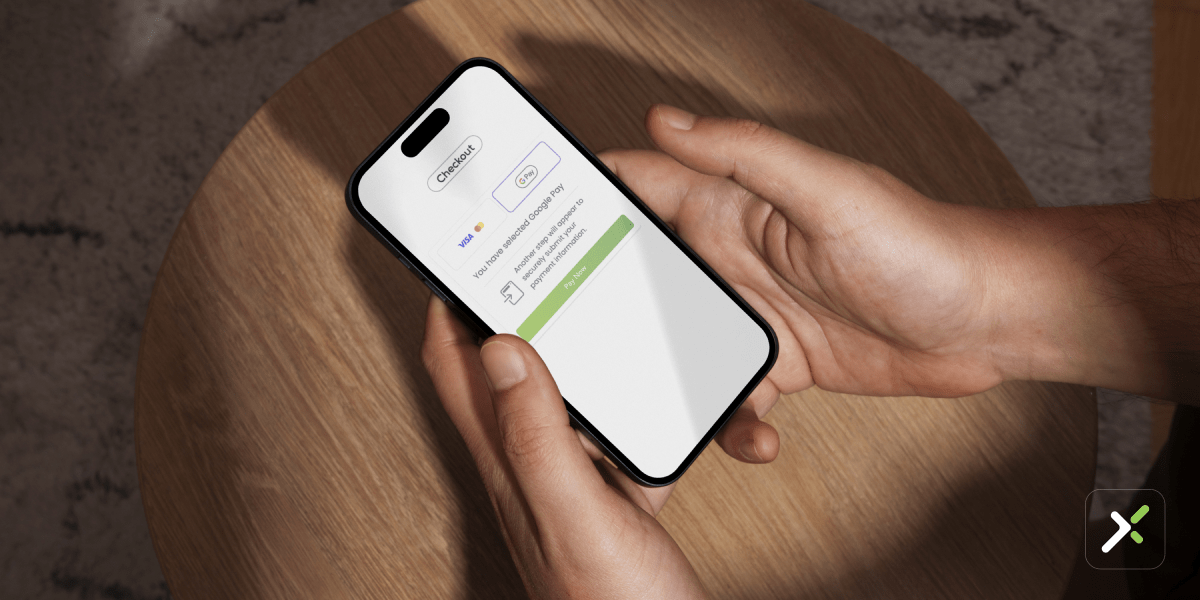
Google Pay is a digital wallet that lets customers complete transactions with cards saved in their Google Account. Users can pay with a single tap on supported devices, authenticating via fingerprint, face recognition, or device PIN.

For online stores, Google Pay appears as a wallet button at checkout, but only for eligible users, keeping the payment form clean for others. Payments are secured through network tokenization, replacing card details with tokens to reduce fraud risk.

In Pakistan, XPay by PostEx enables local merchants to offer Google Pay, streamlining payments directly on their store without requiring complex setup.

Benefits of Adding Google Pay to Your Store

For Merchants

  • Higher approval rates and reduced cart abandonment thanks to faster checkout.
  • Increased conversions as customers complete purchases with one tap.
  • Control via XPay dashboard, with simple activation and no coding.
  • Automatic compliance handling XPay manages Google domain registration and setup.
  • Seamless display the payment button appears only on eligible devices and browsers.
  • No additional fees Google Pay is included in your XPay setup.

For Customers

  • Quick payments with one tap.
  • Strong security via tokenization and device-based authentication.
  • Trusted and familiar payment option.
  • Mobile-optimized checkout, convenient for Pakistani shoppers.

Adding Google Pay can help convert more visitors into buyers with a secure and efficient payment flow.

How to Integrate Google Pay with XPay by PostEx

Currently, Google Pay is supported via XPay SDKs (Web v4 and Flutter). Separate “Pay with Google Pay” buttons outside the XPay SDK are not supported. Integration is straightforward but requires following the correct technical steps.
Prerequisites

  • Active XPay merchant account.
  • Access to the XPay dashboard.
  • Store domain whitelisted for Google Pay (handled automatically in staging; live domains must be registered with Google).
  • Bank Alfalah MIDs added to your XPay account (required for Google Pay to appear).
  • Staging/testing environment for UAT verification.

Step-by-Step Integration

1.Web Integration (XPay Element v4)

  • Use the XPay Element v4 SDK.
    • Staging: npm i @xstak/xpay-element-stage-v4
    • Live: npm i @xstak/xpay-element-live-v4
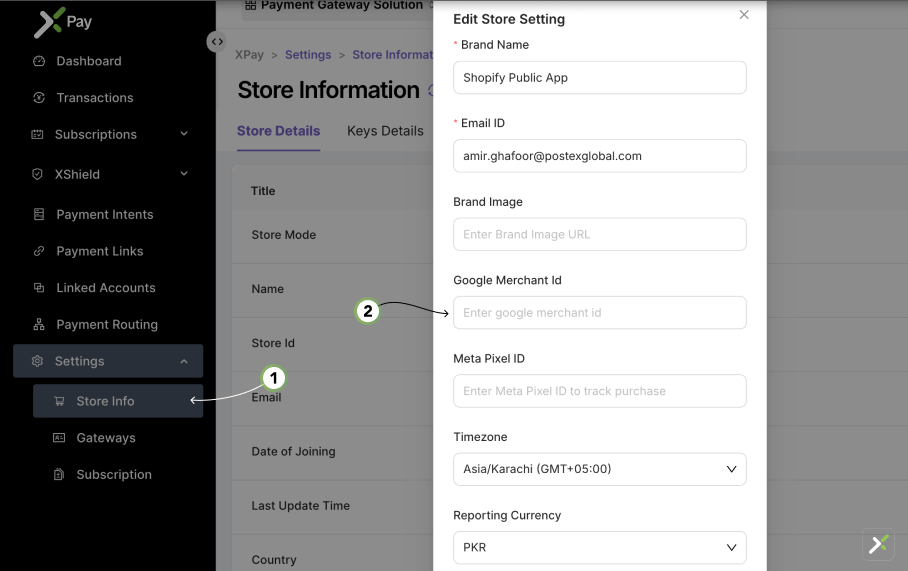
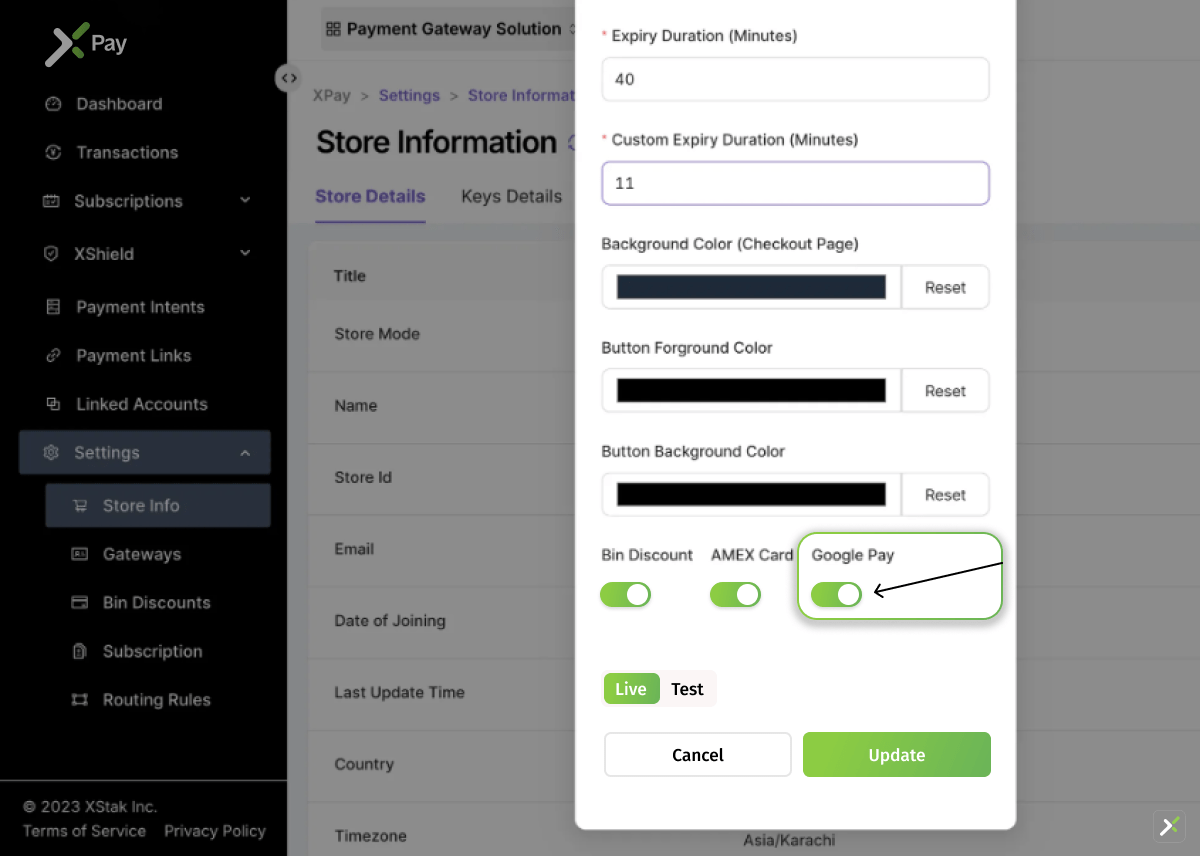
  • Enable Google Pay in your XPay dashboard Store Settings. Add your Google Merchant ID.
google pay settings
google pay settings 1
  • Google Pay button renders automatically in checkout only for eligible users.
  • Payment flow:
    • Customer selects Google Pay → authenticates (PIN/biometrics) → tokenized payment is processed → funds settle in XPay account.

2. Flutter Integration

  1. Add the Flutter package:
# Production
dependencies:  
xpay_element_flutter: ^3.3.0# 
Staging 
dependencies:  
xpay_element_flutter_stage: ^3.6.0
  1. Publish your app on Google Play Store before applying for live approval via the Google Pay & Wallet Console.
  2. Enable Google Pay in XPay Store Settings and add the Merchant ID.
  3. The Google Pay button integrates automatically in your Flutter app through the SDK.

Supported Cards & Authorization

  • Card Networks: Visa, MasterCard, AMEX.
  • Authorization Methods: PAN_ONLY (3DS flow) and CRYPTOGRAM_3DS (tokenized).

Testing and Going Live

  1. Test on a staging environment with supported devices or browsers.
  2. Ensure Bank Alfalah MIDs are enabled for live transactions.
  3. Once verified, the Google Pay button becomes available to all eligible customers automatically.

Important Notes

  • Google Pay works with Bank Alfalah gateway.
  • Domains must be whitelisted by Google for production.
  • XPay handles domain registration automatically in staging; live domains require Google approval.
  • The standalone “Pay with Google Pay” button is not supported outside XPay SDK.

Ready to Add Google Pay?

Adding Google Pay through XPay by PostEx requires minimal effort and delivers immediate results for Pakistani online stores. With no extra costs, automatic handling of compliance and setup, and a focus on secure, fast transactions, it provides a practical way to improve checkout performance.

If you already use XPay, enable Google Pay today to offer your customers a trusted payment option and support higher conversion rates.

For questions or assistance with your XPay account, contact the support team. Start accepting Google Pay and provide a better payment experience for your shoppers in Pakistan.

Get XPay updates in your inbox.

Thank you! Your submission has been received!
Oops! Something went wrong while submitting the form.

Start accepting payments directly with XPay

Offer customers a faster, secure checkout experience without redirects. From cards and wallets to payment links. XPay helps you reduce drop-offs and get paid reliably.

Get Free Demo